Steps to get the Chrome Extension back on your Quickbooks Online
1. Log in to Quickbooks Online (QBO).
2. Go to the top-right corner of your browser window and click the puzzle piece icon (Extensions). 
3. Locate the Chargezoom extension and click it.
-Log back into your Chargezoom account using your Chargezoom email and password.
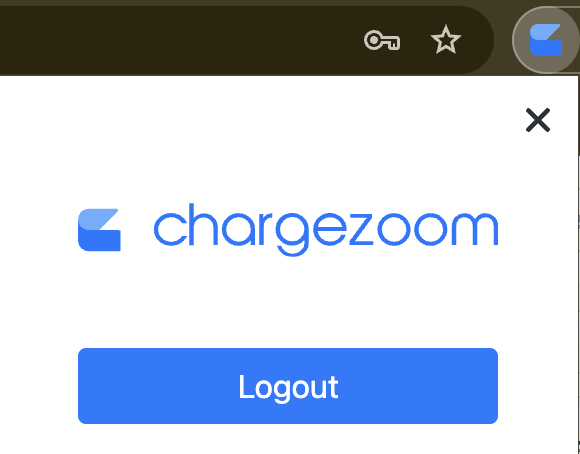
4. After logging in, refresh your Quickbooks Online page.
5.The Chrome extension should now appear at the bottom of your Quickbooks screen.

Was this article helpful?
That’s Great!
Thank you for your feedback
Sorry! We couldn't be helpful
Thank you for your feedback
Feedback sent
We appreciate your effort and will try to fix the article